Be yourself; Everyone else is already taken.
— Oscar Wilde.
This is the first post on my new blog. I’m just getting this new blog going, so stay tuned for more. Subscribe below to get notified when I post new updates.
Be yourself; Everyone else is already taken.
— Oscar Wilde.
This is the first post on my new blog. I’m just getting this new blog going, so stay tuned for more. Subscribe below to get notified when I post new updates.

Object.keys will return an Array, which contains the property names of the object. If the length of the array is 0, then we know that the object is empty.
function isEmpty(obj) {
    return Object.keys(obj).length === 0;
}
We can also check this using Object.values and Object.entries.
This is typically the easiest way to determine if an object is empty.
The for…in statement will loop through the enumerable property of object.
function isEmpty(obj) { for(var prop in obj) {
if(obj.hasOwnProperty(prop))
return false;
}
return true;
}In the above code, we will loop through object properties and if an object has at least one property, then it will enter the loop and return false. If the object doesn’t have any properties then it will return true.
If we stringify the object and the result is simply an opening and closing bracket, we know the object is empty.
function isEmptyObject(obj){
    return JSON.stringify(obj) === '{}';
}jQuery.isEmptyObject(obj); _.isEmpty(obj);Follow Javascript Jeep🚙💨
https://sitepoint.tapfiliate.com/p/payout-methods/new/
In JavaScript we can detect animation events . The list of available animation events are
animationstart → Triggered when an animation is startedanimationiteration → Triggered on each iteration of animationanimationend → Triggered at the end of animationanimationcancel → Triggered when an action is removed(not completely implemented in all browsers)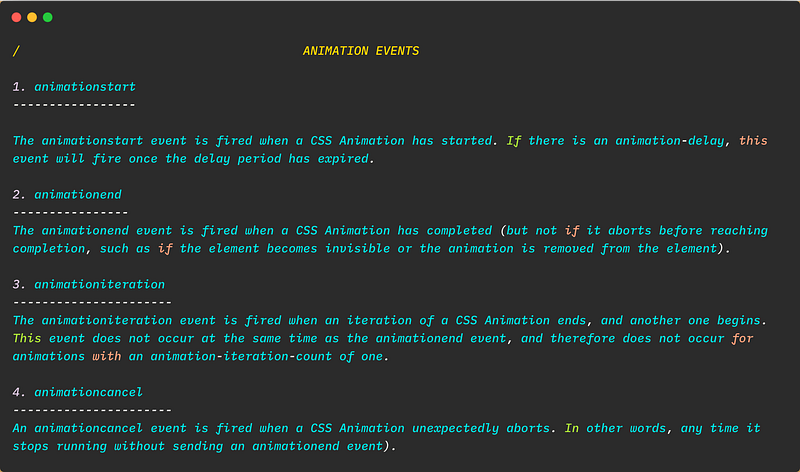
Let’s understand this is real world example . Consider we have an div which will move from left to right
We will add all the events to the square div
https://gist.github.com/Jagathishrex/b7d101eeefbd2da13ffb7596f860eb46#file-animationevent-js
Once all the event is registered it will print animation status message , whenever the status of the animation changes
We can get the current animation name using animationName property of
The complete code can be found here
Follow Javascript Jeep🚙💨

If you’re a programmer, then most of the time you will be using the terminal. This article lists some of the most important Mac/Linux terminal commands.
clear → Clears the screen. Alternatively, we can use Cmd + K .
reset → Resets the terminal display.
sudo command → Run command with the security privileges of the super user. Sudo stands for super user Do.
Print the full path of the current working directory (present working directory).
pwdTo change the current directory to a particular destination
cd folder_path
To change the current directory to the Home directory
cd
# or
cd ~
To change the current directory to Root of the drive
cd /
To change current directory to last browsed directory
cd -
To change the current directory to parent directory
cd ..
To change directory up multiple levels
cd ../../ # move up two levels
ls → Display the name of files and subdirectories in the current directory.
ls -l → List files and sub-directories in a long format. Includes file mode, owner and group name, date and time the file was modified, pathname, and more.
ls -lh → Same as ls -l but with human-readable file size.
ls -a → List files and folders including hidden files and folders.
ls -la → List detailed directory contents, including hidden files.
ls -1 → Output the list of files in one entry per line format.
ls -R → List all the files and folders recursively, which means all the files inside the current folder will be printed.
ls -S → Sort files and folders by size.
To create a file
touch <filename>
Creating/Opening a file with vim
vim <filename>
Open file in terminal
nano <filename>
To print the content of a file
cat <file>
To print the first 10 lines of the file
head <file>
To create a new Folder
mkdir <dirname>If you want to use whitespace in the directory name then use double quotes “” .
mkdir "dir name" To create nested folders.
mkdir -p parent/child/grandchild;
To create nested folders that have whitespace in the folder name.
mkdir -p "parent/child 1/child 2";
To create multiple folders in the current directory.
mkdir dir1_Name dir2_Name dir3_Name
To delete a File
rm path_to_file
To delete a Directory
rmdir path_to_directory
Alternative
rm -R path_to_directory
To delete a file after confirmation from user
rm -i file_path
Deleting multiple files
rm file1 file2 file3
To copy a file to a directory
cp path_to_file destination_directory
To copy a file to another file
cp source_file_path new_file_path
To prompt before copying a file with a warning overwrite message. The message will be displayed if the destination_folder contains a file with the same name
cp -i file_path destination_folder
To copy multiple files
cp file1 file2 file3 destination_folder
To copy a folder
cp -R directory_to_copy destination_path
To move/rename a file
mv source_file new_filename
To move a file to a folder
mv file director_to_move
To move files with a particular extension to specific folder
mv *.pdf director_to_move
To find all files with file name inside a directory and sub-directories
find dir_to_search -name "file_name"
# list all files with file name as "file_name"
We can also use wildcards
find dir_to_search -name "file*"
To search for a folder
find dir_to_search -name "folder_Name" -type d
# list all the directory with name "folder_Name" under "dir_to_search"
To output all occurrences of a specific string in a file
grep "text_to_search" file
To print all lines which don’t have a specific pattern
grep -v "search_pattern" file_name
To search for all files containing a specific string inside a directory
grep -rl "text" directory_path
To add case insensitivity to the above command add -i
grep -rli "text" directory_path
To show the last n commands executed where n is a number
history n
Interactively search through previously typed commands
Ctrl + r
# when you type something it will display all command which matches the current typed command
To execute the last command
!!
To print the last command executed
!!:p
To execute the last command typed that starts with ‘value’
![value];
#consider we have used ls command
!l # --> execute the ls command
To print the last command typed that starts with ‘value’
!l:p
#output
ls
#because we executed ls as last command
To copy file contents to the clipboard
pbcopy < file
To paste clipboard contents
pbpaste
To Paste clipboard contents into file
pbpaste > fileCtrl + a → Move the cursor to the beginning of the current command.
Ctrl + e → Move the cursor to the end of the current command.
Ctrl + l → Clears the screen but we can scroll up to see the history.
Ctrl + h → Alternate to backspace.
Ctrl + c → Kill whatever you are running.
Ctrl + f → Move cursor one character forward (right arrow).
Ctrl + b→ Move cursor one character backward (left arrow).
Ctrl + r → To Interactively search through previously typed commands.
Option + right arrow(→) → Move cursor one word forward.
Option + left arrow(←) → Move cursor one word backward.
Tab → Autocomplete commands, file names, and folder names.
Ctrl + u → Cuts all text before the current cursor position on the current command. The text which is cut is not copied to the clipboard, but we can paste the cleared text using command ctrl+y
Ctrl + k→ Cuts all text after the current cursor position, on the current command.The text which is cut is not copied to clipboard, but we can paste the cleared text using command ctrl+y
Ctrl + w → Cut one word backwards using white space as delimiter. The text which is cut is not copied to clipboard, but we can paste the cleared text using command ctrl+y.
Ctrl + y → prints the last cut command in the terminal using ctrl + u or ctrl+k or ctrl + w.
Ctrl + d → Exit the current shell when no process is running.
Ctrl + t → Swap the last two characters before the cursor.
Cmd + l → Clears last printed output produced by the last executed command.
Cmd + k → Clears the screen completely.
To know more about commands use man, info, help, commands.
[command] -h
man [command]
info [command]
To get one line description use
whatis [command]
Reference : Github
Follow Javascript Jeep🚙💨.

BigInt is a built-in object that provides a way to store numbers larger than Number.MAX_SAFE_INTEGER.
The reason for the need of BigInt is
var maxIntNum = 9007199254740991;
var largeNumber = maxIntNum + 2; // 9007199254740992
The expected result for the above operation is 9007199254740993, but we get 9007199254740992. The reason is that JavaScript uses 64 bits to store a number, so once we try to create a number larger than this, it can’t be stored.
To solve this problem, we can go for BigInt.
n to end of a numbervar num = 100000000000000000n;
num + 10n; // 100000000000000010n
// using binary literal with n appended
var num = 0x1fffffffffffffn
num; // 9007199254740991n
2. Using the BigInt constructor
var num = BigInt(100000000000000000);
num+10n; //100000000000000010n
var fromHex = BigInt('0x1fffffffffffff');
fromHex; // 9007199254740991n
Converting a BigInt to an object
var bigIntAsObject = Object(1n);
bigIntAsObject; // BigInt {1n}
Check if a number is a BigInt
typeof num === "bigint";
typeof bigIntAsObject; "object"
Remember, we cannot mix normal numbers with BitInt, and if we try to, it results in an error.
num + 10;
// Uncaught TypeError: Cannot mix BigInt and other types, use explicit conversions
To solve this, we can do the following by converting our normal number to a BigInt:
num + BigInt(10);
BigIntvar num = BigInt(10);
Addition
num + 10n; // 20n
Subtraction
num - BigInt(5); // 15n
Multiplication
num * 10n; // 150n
Exponent operator
num ** 10n; // 10000000000n
DIVISION
// when we perform division , the fractional part in the result is removed
var n  = 5n;
n / 2n;  // 2n
MODULO
var n  = 5n;
n % 2n; // 1n
10n == 10; // true
When BigInt is compared with non-BigInt numbers, using strict-equality === always results in false.
10n === 10; // false
It is similar to number comparisons
1n < 2
// true

2n > 1
// true

2 > 2
// false

2n > 2
// false

2n >= 2
// trueBoolean(0n) // falseBoolean(12n) // true!0n; // true
!12n; // false.
var n = 100n;
JSON.stringify(n);
// Uncaught TypeError: Do not know how to serialize a BigIntThe toString method of BigInt will return a string representing the specified BigInt object without n at the end of the number.
var a = 10n;
a.toString(); //10
We can use the toString() method to solve errors caused by the stringify method. To solve this, we will add the toJSON method to the BigInt prototype.
BigInt.prototype.toJSON = function() { return this.toString();}The valueOf() method returns the wrapped primitive value of a BigInt object.
var obj = Object(10n);
obj.valueOf(); // 10n
Reference: MDN
Follow Javascript Jeep🚙💨.
https://sitepoint.tapfiliate.com/p/payout-methods/new/
https://sitepoint.tapfiliate.com/p/payout-methods/new/
https://sitepoint.tapfiliate.com/p/payout-methods/new/
https://sitepoint.tapfiliate.com/p/payout-methods/new/
Object.keys(obj) → returns an array of a given object’s property names.Object.values(obj) → returns an array of a given object’s own property values.Object.entries(obj) → returns an array of a given object’s own string-keyed property [key, value] pairs.var user = {
name : "John",
profession : "👨⚕️",
salary : 10000
}
Object.keys(user); // ["name", "profession", "salary"]
Object.values(user); // ["John", "👨⚕️", 10000]
Object.entries(user);
//output
0: (2) ["name", "John"]
1: (2) [“profession”, “👨⚕️”]
2: (2) [“salary”, “10000]
length: 3
All the above three methods return only the enumerable property of the object.
var user = {
    name : "John"
}
Object.defineProperty( user , 'salary', {
   value: 10000,
   enumerable: false
});
In the above code, we define a property salary and set enumerable property as false.This will make the salary hidden from the Object.keys.
Object.keys(user); ["name"]
Object.values(user); ["John"]
Object.entries(user); // ["name", "John"]
We cannot loop through the symbol properties of the object.
var user = {
    name : "John"
}
let Passcode = Symbol("Passcode");user[Passcode] = "1234";
Now we have set the symbol as a property of the object, but this will not be accessible using the three methods above.
Object.keys(user); //["name"]
Object.values(user); // ["John"]
Object.entries(user); // ["name", "John"]
To access the symbol property of the object, we can use getOwnPropertySymbols().
Object.getOwnPropertySymbols(user); //[Symbol(Passcode)]
We can use for… as an alternative to the above methods.
var user = {
    name : "John",
    age  : 25
}
for(const property in user) {
    console.log(`user[${property}] = ${user[property]}`);
}
//output
user[name] = John
user[age]  = 25
Using map with Object.entries.
var user = {
    name : "John",
    age  : 25
}
let entries = Object.entries(user);
entries.map( ([prop, val]) => console.log(prop, val));
Alternatively, we can also use forEach.
var user = {
    name : "John",
    age  : 25
}
let entries = Object.entries(user);
entries.forEach( ([prop, val]) => console.log(prop, val));
Using for…of with Object.entries:
var user = {
    name : "John",
    age  : 25
}
let entries = Object.entries(user);
for(const [prop, val] of entries) {
    console.log(prop, val);
}
References:
Follow Javascript Jeep🚙💨

We can use the window.location property to access the URL of the current page and modify it.
let location = window.location;
For redirecting the page we can use:
location.href = "new url";
// or we can use
location.assign("new url");
For redirecting without storing in history:
location.replace("new url");
For reloading the page:
window.location.reload()We can pass true to force the reloaded page to come from the server (instead of the cache). Alternatively, we can use false to reload the page from the cache.
//from cachewindow.location.reload();
window.location.reload(false);
// from serverwindow.location.reload(true);
Contains the entire URL of the page.
location.href; // current page url addresss
When we assign a new value to the property, it will redirect the url value set to the property.
location.href = "https://google.com";
Make sure to add http/https. Otherwise, it makes the request on the same page.
Contains the protocol (http,https,...) of the page.
location.protocol; // https:
Website hostname with port number.
location.host; // medium.com
// with port number
var anchor = document.createElement("a");
anchor.href = "https://medium.com:4097
anchor.host // "medium:4097"Website hostname.
location.host; // medium.com
Contains the port number. If the URL does not contain an explicit port number, it will be set to ''.
var anchor = document.createElement("a");
anchor.href = "https://medium.com:4097
anchor.port // "4097"Contains the path after the hostname.
location.href; //https://medium.com/@jagathishsaravanan
location.pathname; // "/@jagathishsaravanan"
Returns the search part of URL.
I am on page https://medium.com/search?q=javascriptjeep;
location.search; // ?q=javascriptjeep
Contains string of '#' followed by the fragment identifier of the URL. This will be useful when we have links inside the same page.
Example from MDN Web Docs:
<a id="myAnchor" href="/en-US/docs/HTMLHyperlinkElementUtils.href#Examples">Examples</a>
<script>
  var anchor = document.getElementById("myAnchor");
  console.log(anchor.hash); // Returns '#Examples'
</script>Origin of specific location.
consider we are at page : https://medium.com/search?q=javascriptjeep
location.origin; // https://medium.com
Loads the resource at the URL provided in the parameter.
location.assign("https://medium.com");
This will redirect to medium.com.
The Location.reload() method reloads the current URL, like the Refresh button.
location.reload();
It has an optional parameter forceReload, which defaults to false when forceReload is true. Then it loads the page from the server, instead of loading from the browser cache.
location.reload(true);
Replaces the current resource with the one at the provided URL.
// consider we are google.com
// when we run this line
location.replace("htts://medium.com")
// it will replace the current page and redirect to medium page
The difference from the assign() method is that after using replace(), the current page will not be saved in session History, meaning the user won’t be able to use the Back button to navigate to it.
Returns the whole URL as a string.
location.toString();
// https://medium.com/search?q=javascriptjeep
Reference: MDN Web Docs.
Follow Javascript Jeep🚙💨
?. → Optional Chaining operator
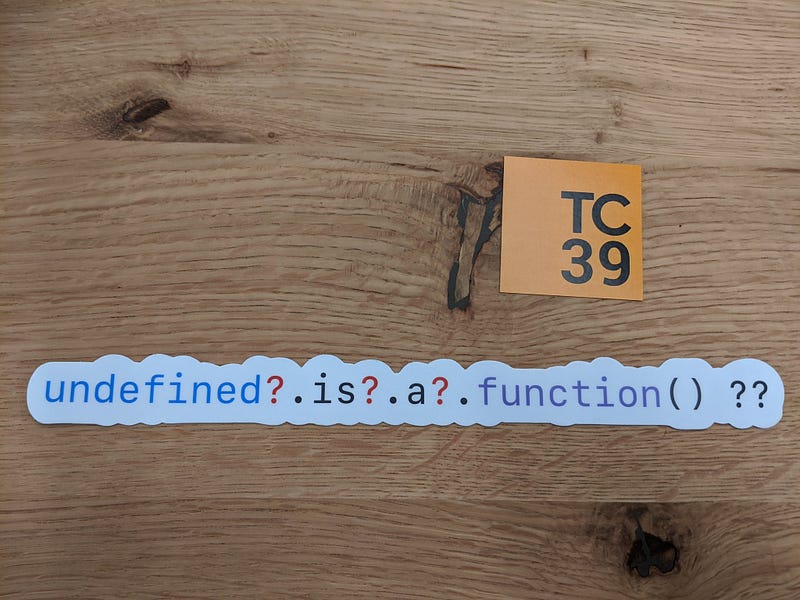
Optional chaining will eliminate the need for manually checking if a property is available in an object . With optional chaining the checking will be done internally .
Example without Optional chaining.
function sayHi(user) {
let name = user.name.toUpperCase();
console.log(`Hi Mr. ${name}`);
}
Consider the above function , that will print the hi message with user name
var user1 = { name : "John"};
sayHi(user1); // Hi Mr.JOHN.
When we pass an user object which doesn’t have the name property
sayHi({});
// TypeError: Cannot read property 'toUpperCase' of undefined.
sayHi();
// TypeError: Cannot read property 'name' of undefined.
To solve the above problem what we do is , we will add check if name property available in the user object
https://gist.github.com/Jagathishrex/ca388ac045f39c6617ce8fe9ec22a43b#file-optionalchaining-js
The optional chaining will check if an object left to the operator is valid (not null and undefined). If the property is valid then it executes the right side part of the operator otherwise return undefined
Basic Example
function sayHi(user) {
   let name = ( user?.name?.toUpperCase() ) || "unKnown";
   console.log(`Hi Mr. ${name}`);
}
The native JavaScript equivalent code for above optional chaining operator is
(property == undefined || property == null) ? undefined : property
We can use variables as property name in optional chaining
var user = {name : "John", age : 20};
var Age = "age";
user?.[Age];
// We can also use with expressions
user?.["a"+"ge"]
You can use optional chaining to call a method which may not exist.
var user = {
    name : "John",
    getName() {
      return this.name;
    }
}
user?.getName?.();
Referemce : MDN.
Follow Javascript Jeep🚙💨.

var array = [1,2,3,1,2,3];
array.sort(); [1,1,2,2,3,3]
Let’s try another example:
var array = [1,2,11];
array.sort(); // [1,11,2]
For the above code, the expected result is [1,2,11], but we get [1,11,2]. The reason is the sort method converts the elements into strings then compares their sequences of UTF-16 code units values.
So the 11 is converted to “11”. When we compare two strings like “11” and “2”, the char code is compared means char code of 1 is 49 , whereas char code of 2 is 50. Because of 49 < 50, we get [1,11,2].
If the array contains any undefined, then all undefined elements are sorted to the end of the array.
We can use the default sort method to sort strings.
var names = ["John", "Abu", "Babu", "Balu", "Antony"]
names.sort();
console.log(names); // ["Abu", "Antony", "Babu", "Balu", "John"]
For other types, we need to pass our compareFunction as an argument to sort Function.
The compare function takes two arguments. The two arguments are taken as from array on index [0,1] , [1,2] … [arrayLength-2, arrayLength-1] for comparing the pair of elements.
The sorting of elements is based on the return value of compareFunction for each pair of comparison.
If the function returns…
>0 then the position of a and b is swapped.<=0 then there is no change in positionLet’s write a compare function to sort numbers.
function compare(a, b) { if (a < b ) {
return -1;
} if (a > b ) {
return 1;
} // otherwise a == b
return 0;}// Now if we execute
var array = [2,1,11];
array.sort(compare);
log(array); [1,2,11];
The above compare function can be simplified as:
function compareNumbers(a, b) { return a - b;}Because, when we do a-b, if a > b then it returns number > 0. If a<b, then it returns < 0. When a=b , then it returns 0.
To sort numbers in Descending Order, just change the a-b to b-a .
function Descending(a, b) { return b- a; }var users = [ {name: "John", age:20}, {name:"Antony" , age : 33}];
function sortByAge(obj1, obj2) {
return obj1.age - obj2.age;
}
function sortByName(obj1, obj2) {
   return obj1.name.localeCompare(obj2.name);
}
users.sort(sortByAge);
// output
0: {name: "John", age: 20}
1: {name: "Antony", age: 33}
users.sort(sortByName);
//output
0: {name: "Antony", age: 33}
1: {name: "John", age: 20}
The localeCompare() method used in sortByName compareFunction returns a number indicating whether a reference string comes before or after or is the same as the given string in sort order.
If the CompareFunction returns undefined, null, NaN, Infinity, then the array will not sort two members
var array = [3,2,1, 110, 102 , 30];
function customCompare(a, b){
   if(a > 10 || b > 10) {
      return Infinity;
   }
   else {
      return a-b;
   }
}
array.sort(customCompare);
In the above example, we have defined if the a and b is less than 10 , it will sort by ascending order. Otherwise, the function will return Infinity, though Infinity > 0. But, it will not be swapped. This is the same for undefined, null, NaN.

The current state of the document can be accessed using readyState property of the document object. document.readyState tells us the status of the page load.
There are 3 different possible states:
loading — The document is loading (the .html file is being downloaded/parsed)interactive — In this state, the DOM is loaded and accessible. However, resources like images, stylesheets, and JavaScript files have not finished downloading/loading/parsing.complete — the document and all resources like images/stylesheets have finished loading.Let’s look at an example. We have a website gitconnected.com, let’s compare the readyState when we type the URL in the browser and hit enter.
Download the index.html file (this is the default if nothing is specified) from the server and parse it. If you have included any script tags, then those are also downloaded, parsed, and executed.

Once the HTML file is loaded, the readyState changes to interactive, and we can detect this using the readystatechange event.
In the interactive state the additional files like css/image files are downloaded. Once the readyState status is interactive, this means DOM is loaded, but the resources are downloading. The DOMContentLoaded event is also fired when the readyState changes from loading to interactive.

Once all the files are downloaded and parsed, the document readystate will change to complete. In this state, all the resources of the page will be available.
When readyState is changed to complete, it means that the document is now parsed and loaded and all known additional resources like CSS, images, and JS have also been parsed and loaded.
readyStateChange eventTo detect the state change, we can add the readyStateChange event listener to the document.
document.addEventListener('readystatechange', function(ev) {
    console.log(document.readyState)
});
A complete example of the above states:
https://gist.github.com/Jagathishrex/bb0474097eb95671f491d8c3ea82ce57
Reference: MDN
Follow Javascript Jeep🚙💨.

Sometimes, we need to check if a variable exists or if it has a valid value, to consider them as a true value. For this kind of validation, you can use the !! (double-negation operator).
A simple !!variable, which will automatically convert any kind of data to a boolean and this variable will return false only if it has some of these values: 0, null, "", undefined, or NaN, otherwise, it will return true.
To understand it in practice, take a look this simple example:
function Account(cash) {
    this.cash = cash;
    this.hasMoney = !!cash;
}

var account = new Account(100.50);
console.log(account.cash); // 100.50
console.log(account.hasMoney); // true

var emptyAccount = new Account(0);
console.log(emptyAccount.cash); // 0
console.log(emptyAccount.hasMoney); // false
In this case, if an account.cash value is greater than zero, the account.hasMoney will be true.
This magic is awesome! And it’s very simple to do but it only works with string numbers, otherwise, it will return NaN (Not a Number). Have a look at this example:
function toNumber(strNumber) {
    return +strNumber;
}
console.log(toNumber("1234")); // 1234
console.log(toNumber("ACB")); // NaN
This magic will work with Date too and, in this case, it will return the timestamp number:
console.log(+new Date()) // 1461288164385
If you see a similar code to:
if (connected) {
    login();
}
You can shorten it by using a combination of a variable (which will be verified) and a function using the && (AND operator) between them. For example, the previous code can become smaller in one line:
connected && login();
You can do the same to check if an attribute or function exists in the object. Similar to the below code:
user && user.login();
Today, in ES6, there is the default argument feature. To simulate this feature in old browsers, you can use the || (OR operator) by including the default value as a second parameter to be used.
If the first parameter returns false, the second one will be used as a default value. See this example:
function User(name, age) {
    this.name = name || "Oliver Queen";
    this.age = age || 27;
}
var user1 = new User();
console.log(user1.name); // Oliver Queen
console.log(user1.age); // 27
var user2 = new User("Barry Allen", 25);
console.log(user2.name); // Barry Allen
console.log(user2.age); // 25
array.length in the LoopThis tip is very simple and causes a huge impact on performance when processing large arrays during a loop. Basically, almost everybody writes this synchronously to iterate an array:
for(var i = 0; i < array.length; i++) {
    console.log(array[i]);
}
If you work with smaller arrays, it’s fine, but if you process large arrays, this code will recalculate the size of an array in every iteration of this loop and this will cause some delays.
To avoid it, you can cache the array.length in a variable to use it, instead of invoking the array.length every time during the loop:
var length = array.length;
for(var i = 0; i < length; i++) {
    console.log(array[i]);
}
To make it smaller, just write this code:
for(var i = 0, length = array.length; i < length; i++) {
    console.log(array[i]);
}
The Array.prototype.slice(begin, end) has the power to cut arrays when you set the beginning and end arguments. But, if you don’t set the end argument, this function will automatically set the max value for the array.
I think that few people know that this function can accept negative values, and if you set a negative number as the beginning argument, you will get the last elements from the array:
var array = [1,2,3,4,5,6];
console.log(array.slice(-1)); // [6]
console.log(array.slice(-2)); // [5,6]
console.log(array.slice(-3)); // [4,5,6]
This technique can lock the array’s size, this is very useful to delete some elements from the array based on the number of elements you want to set.
For example, if you have an array with 10 elements but you want to get only the first five elements, you can truncate the array, making it smaller by setting the array.length = 5. See this example:
var array = [1,2,3,4,5,6];
console.log(array.length); // 6
array.length = 3;
console.log(array.length); // 3
console.log(array); // [1,2,3]
The String.replace() function allows you to use string and regex to replace strings; natively, this function only replaces the first occurrence. But you can simulate a replaceAll() function by using the /g at the end of a Regex:
var string = "john john";
console.log(string.replace(/hn/, "ana")); // "joana john"
console.log(string.replace(/hn/g, "ana")); // "joana joana"
NodeList to ArraysIf you run the document.querySelectorAll("p") function, it will probably return an array of DOM elements, the NodeList object. But this object doesn’t have all the array’s functions, like: sort(), reduce(), map(), filter().
To enable these and many other native array functions, you need to convert NodeList into Arrays. To run this technique, just use this function: [].slice.call(elements):
var elements = document.querySelectorAll("p"); // NodeList
var arrayElements = [].slice.call(elements); // Now the NodeList is an array
// This is another way of converting NodeList to Arrayvar arrayElements = Array.from(elements);
If you need to merge two arrays, you can use the Array.concat() function:
var array1 = [1,2,3];
var array2 = [4,5,6];
console.log(array1.concat(array2)); // [1,2,3,4,5,6];
However, this function is not the most suitable to merge large arrays because it will consume a lot of memory by creating a new array.
In this case, you can use Array.push.apply(arr1, arr2), which instead creates a new array. It will merge the second array into the first one, reducing memory usage:
var array1 = [1,2,3];
var array2 = [4,5,6];
console.log(array1.push.apply(array1, array2)); // [1,2,3,4,5,6];
To shuffle an array’s elements without using an external library like Lodash, just run this magic trick:
var list = [1,2,3];
console.log(list.sort(function() { Math.random() - 0.5 })); // [2,1,3]
Resource : JavaScript Tips
Follow Javascript Jeep🚙💨


 Js Jeep 🚙