Draw an image in canvas using Javascript ⌨️

We will create an app that allows user to upload an image and then we will display it in the canvas.

First let’s create a file inputbox . Also create a canvas to display the image.

<div>
   <input type="file" id="fileinput" accept = "image/*">  
</div>
<canvas id= "canvas"></canvas>

type = file ; to say that the input-box accepts files as input.

accept = image/* → to accept all types of images only.

Now let’s add the Javascript for uploading image.

Steps :

  • Add change event listener 👂 to the file input.
let fileInput = document.getElementById('fileinput');
fileInput.addEventListener('change', function(ev) {
});
  • We can access the file uploaded using event.target.files or if you want to access files without the event object then we can access using the fileInput.files .
let fileInput = document.getElementById('fileinput');
fileInput.addEventListener('change', function(ev) {
   if(ev.target.files) {
      let file = ev.target.files[0];
   }
});
  • Create a FileReader object, and convert the file uploaded into DataURL with the help of readASDataURL method in FileReader.

A Data URL is a URI scheme that provides a way to inline data in a document, and it’s commonly used to embed images in HTML and CSS

let fileInput = document.getElementById('fileinput');
fileInput.addEventListener('change', function(ev) {
   if(ev.target.files) {
       let file = ev.target.files[0]; //get first file
       var reader  = new FileReader();

reader.readAsDataURL(file);
    }
});
  • Add loadend event listener to file reader , this event is triggered when the fileReader finish converting the file into dataURL.
reader.onloadend = function (e) {

}
  • Once the fileReader converted the image to dataURL then we need to create an Image object.
reader.onloadend = function (e) {
var image = new Image();
}
  • Set the source of the image as the dataURL
reader.onloadend = function (e) {
var image = new Image();
image.src = e.target.result;
}
  • Add load event listener to the image . So once the image is loaded we can draw the image to canvas.
reader.onloadend = function (e) {
var image = new Image();
image.src = e.target.result;
image.onload = function(ev) {

}
}
  • Once the image is loaded we need to draw the image on the canvas using drawImage method of canvas context .
reader.onloadend = function (e) {
    var image = new Image();
    image.src = e.target.result;
    image.onload = function(ev) {
       var canvas = document.getElementById('canvas');
       canvas.width = image.width;
       canvas.height = image.height;
       var ctx = canvas.getContext('2d');
       ctx.drawImage(image,0,0);
    }
}

Now the complete code is

let fileInput = document.getElementById('fileinput');
fileInput.addEventListener('change', function(ev) {
   if(ev.target.files) {
      let file = ev.target.files[0];
      var reader  = new FileReader();
      reader.readAsDataURL(file);
      reader.onloadend = function (e) {
          var image = new Image();
          image.src = e.target.result;
          image.onload = function(ev) {
             var canvas = document.getElementById('canvas');
             canvas.width = image.width;
             canvas.height = image.height;
             var ctx = canvas.getContext('2d');
             ctx.drawImage(image,0,0);
}
      }
   }
});

Creating a awesome 😎 underline text effect in CSS

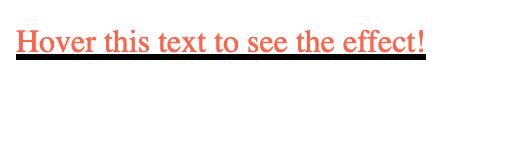
Creating awesome stuffs in css is easy. So let’s create an awesome underline effect.

Let’s create an para

<p class="underline"> Javascript Jeep 🚙 🚘  is awesome 😎 </p> 

Let’s add the position property to the para to relative , with that we can make use of ::after pseudo class and create a underline like shape .

.underline {

position : relative;
    color : tomato ;
}

Now let’s add some property to create an underline effect using ::after

.underline::after {
  content : "";
  position : absolute;
  width : 100%;
  height : 3px;
  background-color: white;
  bottom: 0; //to place it in bottom
  left: 0;
}   


To make the underline only set to the width of the text . We can set the display property of para to inline block. By setting that the width of the para becomes the width of the content.

.underline {
     display : inline-block;
}


Hide the underline by-default , we can show it when the user hover over the para, we can hide by setting the scaleX property of transform to 0 .When user hover over the para we make scaleX :1 ,So it gives an effect of expanding from the left side.

.underline::after {
   transform : scaleX(0);
 }
.underline:hover::after {
   transform : scaleX(1);
}

The transition of scaleX 0- 1 appears suddenly. To make it smooth add transition property for transform options .

.underline::after {
  transition : transform 0.25s linear;
}

So now the transform happens for .25s in linear way.

Now we need to add an effect of making the underline appear from left and hide on right . So when user hover over para set transform-origin: bottom left otherwise transform-origin: bottom right for .underline

.underline::after {
   transform-origin: bottom right;
}
.underline:hover::after{
    transform-origin: bottom left;
}

Follow Javascript Jeep🚙 🚗 🚘 🥶.

Creating an awesome Tooltip in css.

Awesome tooltips are made by crazy peoples.

First let’s create a button .

<button class = "button"> Button </button>

Add some style to it, to make the button looks great,

.button {
   position: relative;
   background: #E5C388;
   padding: 10px;
   border-radius: 4px;
   border: none;
   text-transform: uppercase;
   font-weight: bold;
   color: white;
}

The position property of button is set to relative so that we can add the tooltip position absolute with respective to the button.

Now the button looks like


Let’s add tool tip to the button

<button class = "button"> 
      Button 
      <span class="tooltip">Javascript Jeep </span>  
</button>

Now the button looks like


Let’s add some css to make the span as tooltip.

.tooltip {

position: absolute; // absolute to button
bottom : 110%; // the span is moved to top of the button
background-color: #333;
border-radius: 3px;
font-size: 10px;
color: #eee;
}

Resulting button is


To create a triangle at the end we can use :after property in span

.tooltip:after {

position: absolute;
content: "";
top: 100%; //to set the triangle at end
left: 10%; // left side moved 10% so it looks like tooltip
// this border property makes the triangle
border-top: 5px solid #333;
border-right: 5px solid transparent;
border-bottom: 5px solid transparent;
border-left: 5px solid transparent;
}


To make the span display like a tooltip , we need to hide the tooltip and show only when user hover over the button .

For that add display: none to the .tooltip class.

.tooltip {

position: absolute; // absolute to button
bottom : 110%; // the span is moved to top of the button
background-color: #333;
border-radius: 3px;
font-size: 10px;
color: #eee;
display : none; //hide the tooltips
}
// on hover over .btn it makes the .tooltip display block
.button : hover > .tooltip {
display : block;
}

Also add animation to tooltip class to make it more beautiful.

.tooltip {
animation: moveup 0.1s linear;
}
@keyframes moveup {
0% {
//for rotating effect rotate is set 25deg at beggining
transform: translateY(10px) rotate(25deg);
opacity: 0;
}
100% {
transform: translateY(0) rotate(0deg);
opacity: 1;
}
}

So that’s it we have created an awesome tooltip with a cool effect .

Follow Javascript Jeep🚙 🥶.

Creating custom scrollbar in css

Default scrollbars are boring so let’s try building a awesome 😎 custom scrollbar using css.

First we need to create a container with some text .

<div class="custom-scrollbar">
<p>
"Doctors are just the same as lawyers; the only difference is
that lawyers merely rob you, whereas doctors rob you and kill
you too
."
    <hr>
Wine is constant proof that God loves us and loves to see us
happy
.”
    <hr>
If you’re going to tell people the truth, be funny or they’ll
kill you.
  </p>
</div>

Now lets add the height and width to the div

.custom-scrollbar {
     height : 70px; //make content scroll by setting small height
     width  : 500px;
     background : #F5F6F9;
     overflow-y : scroll; // it creates the default scrollbar
}

The custom scrollbar looks like

This is a default scrollbar provided by browser.

Now lets add css to the scrollbar for make it awesome

Before applying style we need to know different area of scrollbar , they are

1.scrollbar-track , 2 : scrollbar-thumb

In that picture the label 1 denotes the scrollbar- track and label 2 denotes scrollbar-thumb.

Now we can set the style to it

.custom-scrollbar::-webkit-scrollbar {
width: 10px;
}
.custom-scrollbar::-webkit-scrollbar-track { // set style to track
background : #555999;
border-radius: 10px;
}
.custom-scrollbar::-webkit-scrollbar-thumb { // sets style to thumb
background : rgba(255,255,255,0.5);
border-radius: 10px;
box-shadow:  0 0 6px rgba(0, 0, 0, 0.5);
}

So that’s how we create a custom scrollbar in css and make our website make more beautiful and attractive.

Please do follow Javascript Jeep🚙 🥶.

Highlight text on selection in css

Create an awesome effect on selecting text using css.

First we need to create a para with some text.

<p class="highlight-text">Select the text to see magic . </p>

Now let’s add a ::selection pseudo selector on an element to style text within it when selected.

.highlight-text ::selection {

background : #738BFA;
   color : white;
 }

To make the style to the entire document you can declare like

::selection { // this is set to the document

background : #738BFA;
   color : white;
}

Follow Javascript Jeep🚙 for more interesting things. 🥶.

Developing a Bouncing loader in CSs

Will create a super bouncing loader in css .

First we need to create 3 dots , to create a loader.


<div class = "loader">  
    <div></div>
    <div></div>
    <div></div>
</div>

Add some css to make the div to fill whole screen.

Set the loader as flex-box and set all div inside loader to

  • center vertically using align-items: center
  • center horizontally using justify-content: center;
body {
margin : 0;  //set margin to zero
}
loader {
width : 100vw;
height : 100vh;
display : flex;
justify-content: center; //make all div to center horizontally
align-items : center; //this makes all div to center vertically.
}

Now , convert all the div into dot or circle shape by setting border radius to 50%;

loader > div {
width: 20px;
height: 20px;
background: #8385aa;
border-radius: 50%; // make the div looks like circle
margin : 3px;//for space between each circle
}

Now let’s add an animation by using keyframes. In keyframe we define to state(finish state) of the animation .

In the to state we define animation as the div to be translated x -20px and opacity to 0 so that it give an effect of fading.

@keyframes loader {
to {
opacity: 0.1;
transform: translate(0, -20px);
background : pink;
}
}

Now add the animation to the div inside the loader . Also add delay to each div so that it looks great.

.loader > div {
width: 20px;
height: 20px;
background: #8385aa;
border-radius: 50%;
margin : 3px;
animation: loader 0.6s infinite alternate;
}
// add delay
.loader > div:nth-child(2) {
animation-delay: 0.2s;
}
.loader > div:nth-child(3) {
animation-delay: 0.4s;
}

That’s it we have developed a super simple awesome 😎 loader in css 👍 .

Follow Javascript Jeep🚙 for more interesting posts🥶.

Reverse string in Javascript.

There is no built-in reverse method present in String object to reverse a string.But we can reverse a string by,

  • Convert the string to array , using split method.
  • Reverse the array.
  • Join the reversed array.
function reverse (string) {
      return string.split('').reverse().join();
}

That is you have finished reading small and sweet article. 🤩😎.

Follow Javascript Jeep🚙🥶 .

Creating a Pomodoro Timer in JavaScript in 10 Lines of Code


Algorithm:

  1. Create a function that executes every second using setInterval.
  2. Get the total number of minutes.
  3. Convert that into seconds and store in a global variable.
  4. Decrement the seconds by “1” for each second.
  5. Check if the seconds reaches 0. If true then alert the user and clear the timer.

Coding time! Ready→ Set → Go. Start coding 🤩

<script>
var seconds = 0;
var interval ;
function pomodoro(mins) {
   seconds = mins*60 || 0;     
   interval = setInterval(function() {

seconds--;
        if(!seconds){
             clearInterval(interval); 
             alert("🚨 It is Cool 😎. I wish you could share ");
        }
   },1000)
}
</script> 

That’s so simple to create an awesomatic 😎 super exclusive pomodoro clock. Follow Javascript Jeep🚙 .

If you find this helpful surprise 🎁 me here.

Share if you feel happy 😃 😆 🙂 .

Creating a super simple loader in Css

Creating a loader in css is as easy as eating a piece of cake.

  1. Create a div ;
<div class="spinner"></div>

2.Add some style to the spinner div.

.spinner {
  border: 10px solid rgba(0, 0, 0, 0.1); //create border
  border-left-color: #2EB35A; // make only one side 
  border-radius: 50%; // makes the div looks like circle
  width: 50px;
  height: 50px;
}

To make the spinner rotate we need to add keyframe property.

@keyframes spin {
 0% {   
transform: rotate(0deg); // at starting the div is rotated 0 deg
}
 100% {
transform: rotate(360deg);//at end div will be rotated 360 deg
}
}

Now lets add the animation to the spinner, now in the css the spinner class looks like.

.spinner {
  border: 10px solid rgba(0, 0, 0, 0.1); //create border
  border-left-color: #2EB35A; // make only one side
  border-radius: 50%; // makes the div looks like circle
  width: 50px;
  height: 50px;
  animation : spin 1s linear infinite; // it executes spin for 1s
}

Finally we have created super Awesome 😎 Spinner.

Follow Javascript Jeep🚙 🥶.

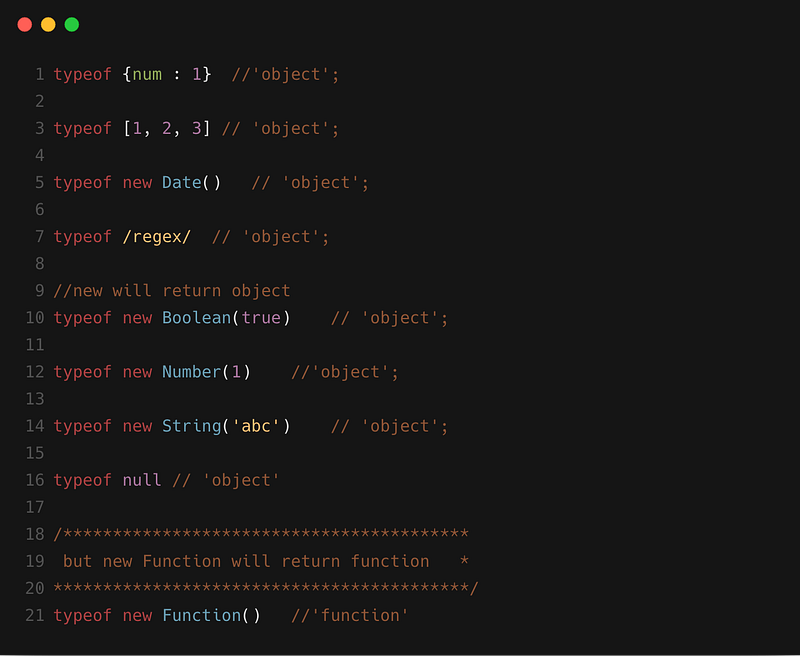
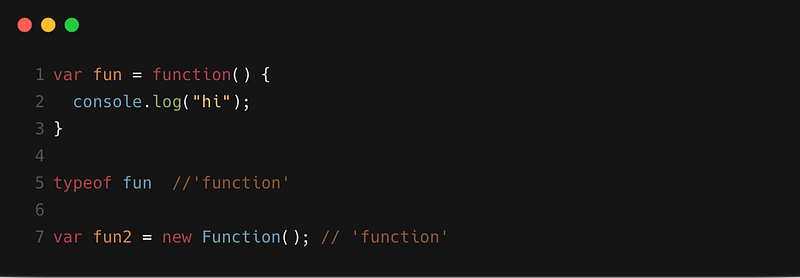
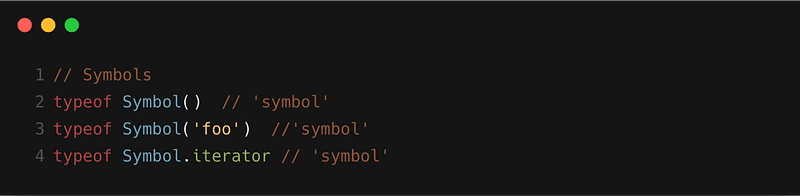
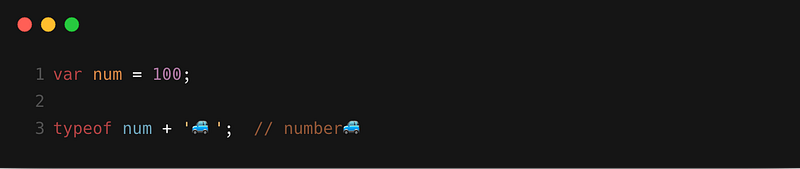
Javascript typeof operator

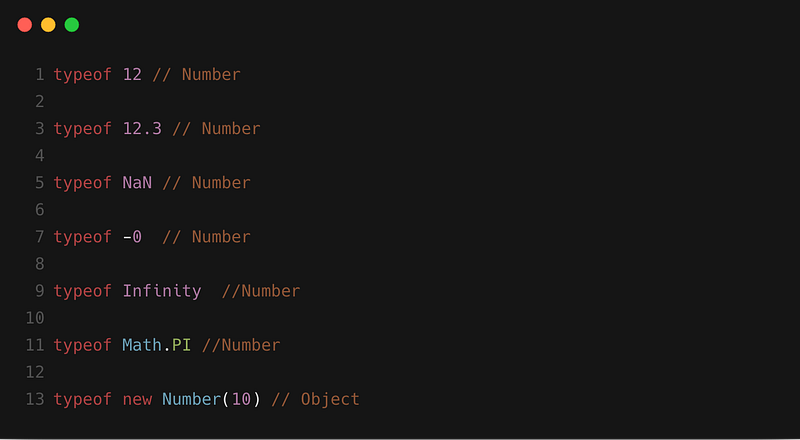
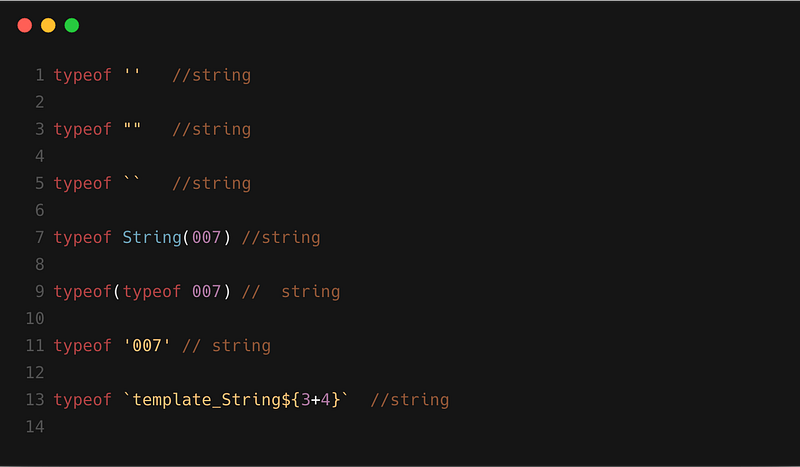
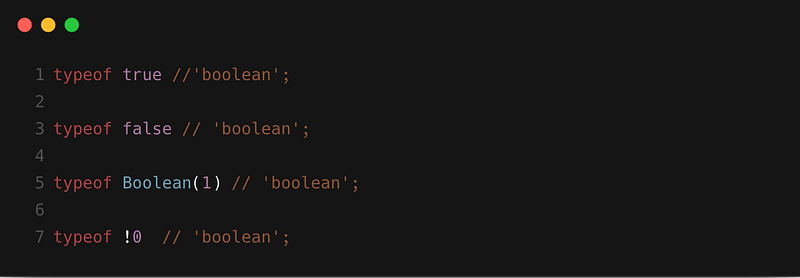
The typeof operator returns a string indicating the type of the unevaluated operand.(source: MDN)

  1. Numbers


2.String


3. Booleans


4.Object


5. Function


6.undefined


7.Symbol


Remember


I referred here for writing this article.

Follow Javascript Jeep🚙 for more interesting Javascript tips.


https://gitconnected.com/learn/javascript

Design a site like this with WordPress.com
Get started