Learn how to detect if the user is online or offline and handle events if a change in the online/offline state occurs.
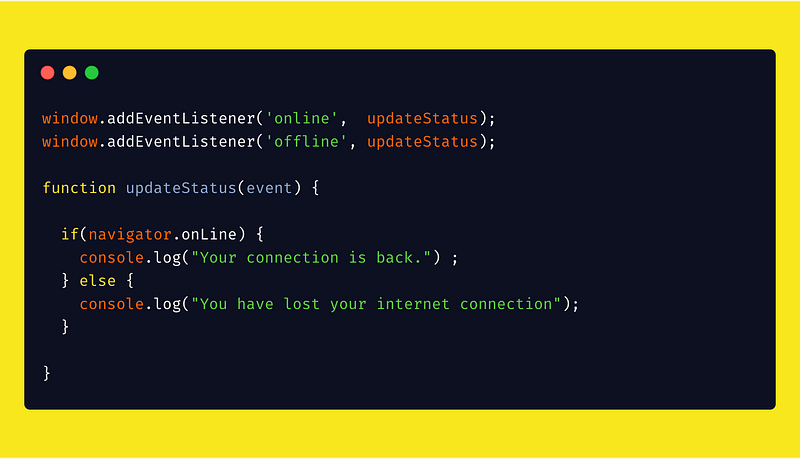
We can detect if the user is online or offline by using the online property on the navigator object which will return true if the user is connected to the internet, otherwise it returns false.
Additionally, online and offline events will be triggered if the user’s internet connections state changes. So we can add an online and offline event listener to the window and perform respective actions based on the online and offline state.
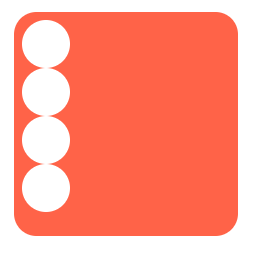
This will add a circle inside the dice div. Now, the dice container looks like:
Now, let’s make the dot container appear on the center of the dice container. For that, we need to make the first-face as flexbox and apply:
justify-content:center → will make the dot align to the center of the main axis (horizontal).
align-items:center → will make the dot align to the center of the cross axis (vertical).
.first-face {
display: flex;
justify-content: center;
align-items: center;
}
Second Face
Second face of the die
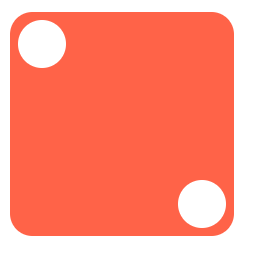
Now, we need create a die with two dots — one dot at the top-left corner and another at the bottom-right corner.
<div class="dice second-face">
<span class="dot"> </span>
<span class="dot"> </span>
</div>
Make the second face as flex, and add:
justify-content: space-between → This will place the children at the beginning and the end of the flex-container.
.second-face{
display: flex;

   justify-content : space-between;
}
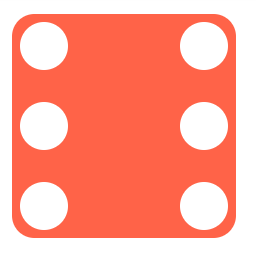
The above code will create a dice like this:
The first dot is in the correct place: the top-left corner. Now, we need to align the second dot to the bottom-right corner. For that, apply the align-self property to the second dot of the die.
align-self: flex-end → will align the item to the end of the flex container.
.second-face .dot:nth-of-type(2) {
align-self: flex-end;
}
Third Face
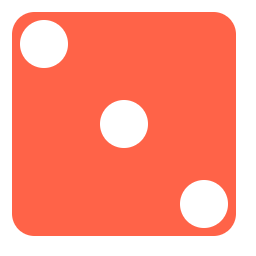
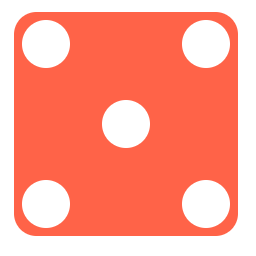
For achieving the third face, we’ll have three dots: one at the top left, one at the center, and one at the bottom right of the die.
We can achieve the third-face by placing an another dot center to the second-face.
justify-content: space-between → This will place the children at the beginning and the end of the flex-container.
.second-face{
display: flex;

   justify-content : space-between;
}
Now, we need to make the last dot (third dot) that’ll be placed in the bottom-right.
.second-face .dot:nth-of-type(3) {
align-self: flex-end;
}
Align the middle dot (second dot) at the center of the parent.
.second-face .dot:nth-of-type(2) {
align-self: center;
}
If we want the first dot in the top-right and the last dot in the bottom-left, then change the first dot’s align-self to flex-end — automatically the third dot will be placed to the bottom-left because the default property of align-self is flex-start.
Third face altered
.third-face .dot:nth-of-type(1) {
align-self :flex-end;
}
.third-face .dot:nth-of-type(2) {
align-self :center;
}
Fourth Face
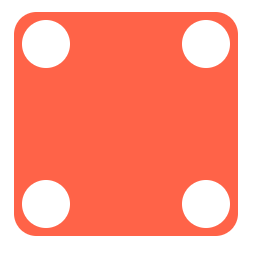
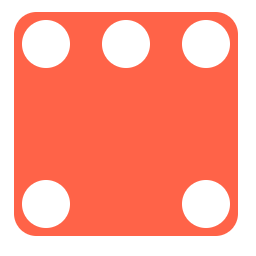
In our fourth face, we can split it in two rows, each row containing two columns. One row will be at flex-start, and another will be at flex-end .
We learn about finding Number of Seconds , Number of Minutes , Number of hours , Number of days , Number of weeks , Number of months , Number of years between two dates.
Let’s create two dates
let d1 = Date.now();
let d2 = new Date(2019,5,22).getTime(); //Jun 22 2019 in millisecond
console.log(d1); //1573527098946
console.log(d2); //1561141800000
Number of Seconds between two dates.
1 second = 1000 milliseconds
Now we are having two date d1 and d2 in milliseconds. To convert milliseconds into seconds ,we can divide the difference between two dates in milliseconds by 1000 .
function secondsDiff(d1, d2) {
let millisecondDiff = d2 - d1;
let secDiff = Math.floor( ( d2 - d1) / 1000 );
return secDiff;
}
Number of Minutes between two dates.
1 minutes = 60 seconds
Now we have method to find the number of seconds between two dates , so we can find seconds difference, then divide that by 60 will give us the number of minutes between two dates.
function minutesDiff(d1, d2) {
let seconds = secondsDiff(d1, d2);
let minutesDiff = Math.floor( seconds / 60 );
return minutesDiff;
}
Number of Hours between two dates.
1 hour = 60 minutes
Now we have method to find the number of minutes between two dates , so we can find minutes difference, then divide that by 60 will give us the number of hours between two dates .
function hoursDiff(d1, d2) {
let minutes = minutesDiff(d1, d2);
let hoursDiff = Math.floor( minutes/ 60 );
return hoursDiff;
}
Number of Days between two dates.
1 day = 24 hours
Now we have method to find the number of hours between two dates , so we can find difference, then divide that by 24 will give us the number of days between two dates.
function daysDiff(d1, d2) {
let hours = hoursDiff(d1, d2);
let daysDiff = Math.floor( hours / 24 );
return daysDiff;
}
Number of Weeks between two dates.
1 week = 7 days
Now we have method to find the number of days between two dates , so we can find difference, then divide that by 7 will give us the number of weeks between two dates.
function weeksDiff(d1, d2) {
let days = daysDiff(d1, d2);
let weeksDiff = Math.floor( days/ 7 );
return weeksDiff;
}
Number of Years between two dates.
To find number of years between two dates we have in-built method getFullYear , Subtract the date2 year with date1 year, we will get yearsDiff .
function yearsDiff(d1, d2) {
let date1 = new Date(d1);
let date2 = new Date(d2);
let yearsDiff = date2.getFullYear() - date1.getFullYear();
return yearsDiff;
}
Number of Months between two dates.
1 month != 30 days
Number of days in month is not same in all months , so we need to do it differently
Steps :
First we need to find number of years between two dates.
Multiply number of years between two dates by 12(because for each year 12 months)
Subtract the month number(June → 5) of second date with the month number of first date
Finding number of months between two dates
function monthsDiff(d1, d2) {
let date1 = new Date(d1);
let date2 = new Date(d2);
let years = yearsDiff(d1, d2);
let months =(years * 12) + (date2.getMonth() - date1.getMonth()) ;
return months;
}
Thanks for Reading 📖 . Hope you like this. If you found any typo or mistake send me a private note 📝 thanks 🙏 😊 .
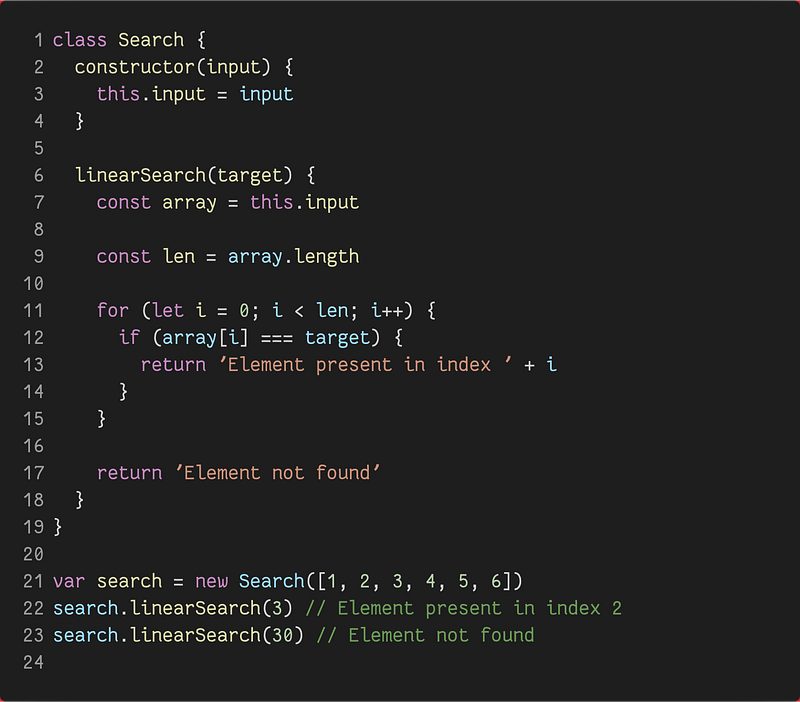
Learn how the Linear search Algorithm works and how to implement it .
Linear search is a Searching algorithm, which is used to check if an element is present in an array or list . It is also called Sequential search.
A linear search sequentially search for the target element in the array. If it finds the element in the array it stop searching and returns successful . If it reaches the end of the array, then it returns element not found.
Algorithm
Traverse the array using a for loop (any looping technique).
In every iteration, compare the target value with the current value of the array.
If the values match, return the current index of the array.
If the values do not match, move on to the next array element.
3. If no match is found, return element not found.
Whenever we are in situation of writing multiple if/else statement for a particular test case, then the multiple if/else statement can be replaced by switch statement.
Syntax :
switch(expression_or_value) {

case expression_or_value :
      operation1
      [break];
   case expression_or_value :
      operation2
      [break];
...
   default :
       default operation
       [break];
}
// break is optional
A switch statement first evaluates its input expression.
It then checks whether the first case expression evaluates to the same value as the result of the input expression, using strict equals (===).
If the case is matched then, the code associated with the case is executed until it finds the break keyword, or also the return keyword inside functions.
If the break or return is not added to the case, then the switch statement will continue and execute the code below the match. It will continue to run until it finds a break, return, or reaches the end of the statement.
If no matching case is found then the program looks for a default clause and executes the code there.
If a default clause is not found, then it reaches end of the switch expression and does nothing.
Example:
function getCost(item) {
let cost ;
switch(item) {
    case '🍌':
      cost = '10$';
      break;

    case '🍉' :
      cost = '20$';

    case '🍓' :
      cost = '30$';
      break;

    default :
      cost = "Item not in stock";
}
  return cost;
}
Let’s execute the function and test it
getCost('🍌'); // 10$
getCost('🍉'); // 30$
getCost('apple'); // Item not in stock
getCost(‘🍌’)→ matches the first case and executes the cost = 10$ and executes the break statement, which ends the switch statement.
getCost(‘🍉’) → matches the second case and executes the cost = 20$. There is no break, so the code below it is executed, and the value of cost starts at 20$ but continues to run and becomes 30$ .
getCost(‘apple’) → no matching case, so it executes the default case. For the last case, there is no need for the break statement because there will be no more case below it .
Cases where we can skip break statement
If we want to execute same operation for two or more conditions, then we can make use of skipping break statement.
function isVowel(input) {
let isVowel = false;
switch(input) {
    case 'a':
    case 'e':
    case 'i':
    case 'o':
    case 'u':
      isVowel = true;
}
return isVowel;
}
The order in which the cases are placed is not considered.
We can also place the default case anywhere inside the statement.
function getCost(item) {
let cost = `The cost of ${item} is `;
switch(item) {
    default :
      cost = "Item not in stock";
      break;
    case '🍌';
      cost = '10$';
      break;

    case '🍉' :
      cost = '20$':

    case '🍓' :
      cost = '30$';
      break;
  }
  return cost;
}
But don’t forget to add a break statement to the end of default case if it is not placed at the end of all cases.
We can also add block to each case
function getMenu(option) {
    switch(option) {

 case 'veg' : {
 console.log('🍎','🍉','🍌','🍓', '🍏');
        break;
      }

case 'non-veg': {
console.log('🍗', '🍜', '🥩','🍣');
        break;
     }

default :
        console.log('🍕','🥓','🥕','🍧');

    }
}
But when we need to use that?
In a switch expression, variables created inside any one of the case blocks is available to entire switch block.
function getMenu(option) {
    switch(option) {

      case 'veg' :
 let menu =  ['🍎','🍉','🍌','🍓', '🍏'];
        console.log(...menu);
        break;

      case 'non-veg':
 let menu =  ['🍗', '🥩','🍣']; // this will throw error
        console.log(...menu);
        break;

      default :
        console.log('🍕','🥓','🥕','🍧');

    }
}
The above example throws , “Uncaught SyntaxError: Identifier ‘message’ has already been declared”, which you were not probably expecting.
To solve this we can use a block {} for the case section.
function getMenu(option) {
    switch(option) {

 case 'veg' : {
let menu =  ['🍎','🍉','🍌','🍓', '🍏'];
        console.log(...menu);
        break;
      }
      case 'non-veg': {
let menu =  ['🍗', '🥩','🍣'];
        console.log(...menu);
        break;
      }
      default :
        console.log('🍕','🥓','🥕','🍧');
}
}
We can have an expression for the switch and case
switch(1+2) {

    case 1:
      console.log(1);
      break;

    case 1+2 :
      console.log(3); // this will be executed
      break;

  }
The switch compares cases with strict equality
switch(1) {

    case '1':
      console.log(1);
      break;

    default :
      console.log("Default"); // this will be executed

  }
Thanks for Reading 📖 . Hope you like this if you found any typo or mistake send me a private note 📝 thanks 🙏 😊 .
We have some in-built methods to add at elements at the beginning and end of the array.
push(value) → Add an element to the end of the array.
unshift(value) → Add an element to the beginning of an array.
To add an element to the specific index there is no method available in Array object. But we can use already available splice method in Array object to achieve this.
An array starts from index 0 ,So if we want to add an element as first element of the array , then the index of the element is 0 .If we want to add an element to nth position , then the index is (n-1) th index.
MDN :
The splice() method changes the contents of an array by removing or replacing existing elements and/or adding new elements, in the original array(which means the source array is modified)
splice()method takes three argument
start → The index at which to start changing the array.
deleteCount(optional) → An integer indicating the number of elements in the array to remove from start.
(elem1, elem2 …) → The elements to add to the array, beginning from start. If you do not specify any elements, splice() will only remove elements from the array.
In order to insert an element to the specific index , we need to provide arguments as
start → index where to insert the element
deleteCount → 0 (because we don’t need to delete element)
elem → elements to insert
Let’s Write the function
function insertAt(array, index, ...elementsArray) {
array.splice(index, 0, ...elements);
}
Now Let’s call the function
var num = [1,2,3,6,7,8];
/*
arguments
 * 1. source array - num
 * 2. index to insert - 3
 * 3. remaining are elements to insert
*/
Values in arrays are desctructured based on their index. The variable can be named anything you want. The variable name associated with the index is how it is assigned.
Tips: With array destructing we can easily swap values
var a = 10,b = 20;

[b, a] = [a, b]

console.log(a, b); 20, 10
Object Destructing
We can extract data from properties of the object using object destructing. Here the name of the variable is matched with the property of the object and the corresponding property value is retrieved from the object and assigned to the variable.
var user = {name : "Ram", age : 20};

var {name, age} = user;
console.log(name, age); // "Ram", 20
Example 2:
var {name, age} = {name: "Ram", age : 20};
console.log(name, age); // "Ram", 20
If the variable name doesn’t match the property of the object, then the value of unmatched variable will be undefined.
var {name, age, salary} = {name: "Ram", age : 20};
We can’t do like {name, age} = user; because “{” is the first token , so JavaScript thinks it is a start of block .
To solve this
({name, age} = user);
Assigning to new variable names
var user = {name : "Ram"};
var {name: userName} = user;

userName; // "Ram"
The above code takes name property from user and create a new variable with name userName and assign the value to userName variable.
Tip: We can use new variable name when the property of the object is invalid identifier name
var user = {"user-name" : "Mike"};
var {"user-name": userName} = user;
userName; //Mike
Assigning Default value
The default value can be assigned to a variable if the property is not present in the object.
var user1 = {name : "Mike", nickName : "mic"};
var {name1, nickName1="Noob Master"} = user1;
console.log(nickName1); // "mic"
//If the property not present
var user2 = {name : "Ram"};
var {name2, nickName2="Noob Master"} = user2;
console.log(nickName2); //"Noob Master"
Using both default values and new variable names
var user = {};
var { name: userName = "Default Name" } = user;
console.log(userName); // "Default Name"
Using Object Destructing as function arguments
Without destructing
function logUser(user)
{
    var name = user.name;
    var age = user.age;
    console.log(name, age);
}
var user = {name : "Mike", age : 20};
logUser(user); // "Mike", 20
The above code can be simplified to
function logUser( {name, age} )
{
    console.log(name, age);
}
var user = {name : "Mike", age : 20};
logUser(user); // "Mike", 20
Using default value and new variable name in function argument destructing
function logUser( {name:userName, age: userAge = 30} )
{
console.log(userName, userAge);
}
var user = {name : "Mike"};
logUser(user); // "Mike" , 30
The above method logUser will throw an error if we call the method without any argument. If we don’t pass any argument, it tries to destructure undefined so it throws error. To resolve this:
function logUser({name: Name="Jack", age: Age = 30} = {}) {













 Js Jeep 🚙